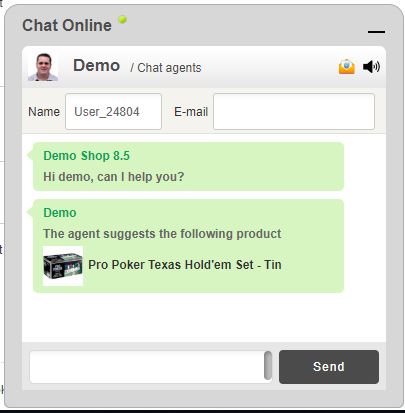
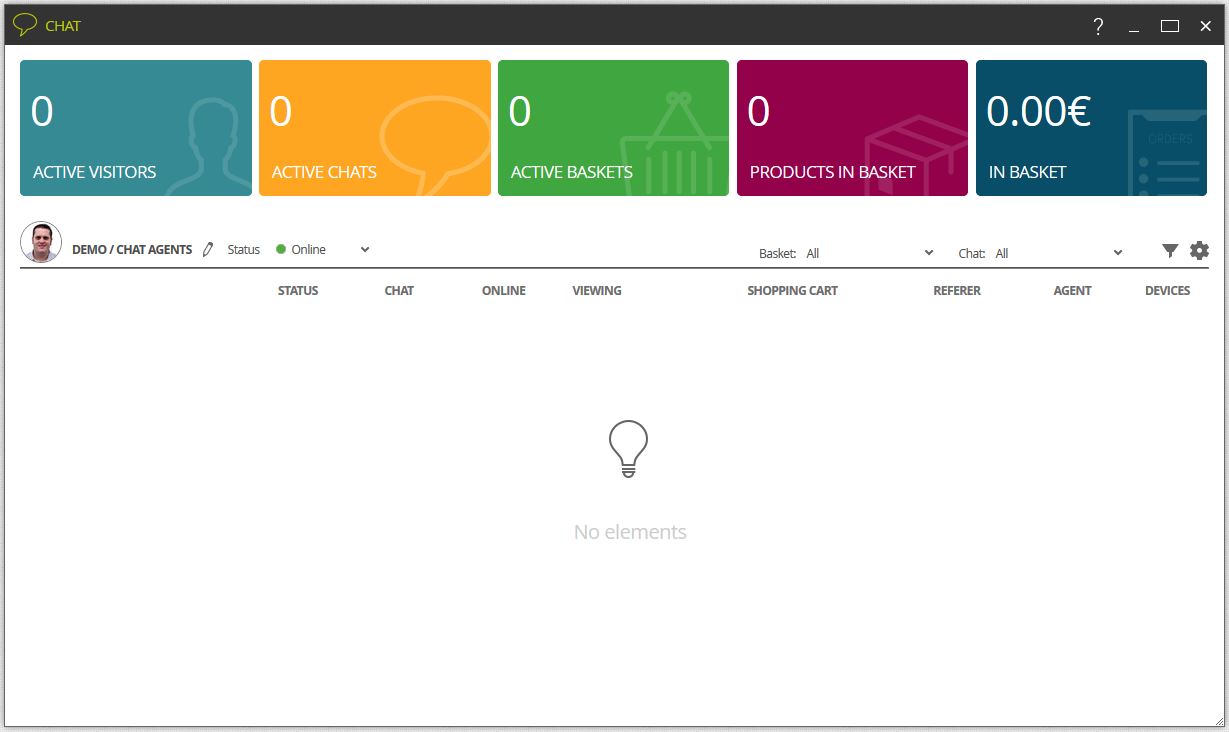
The chat can be open or closed (active yes/no). This state will modify the display that the ecommerce visitor will see, so that when it is open and with some agent online he will be able to send a message, and when it is closed the chat window will not be visible. If there are not available chat agents or the agent is in offline or invisible mode (status selector at the top left of the window), the window will be visible in the FrontOffice, but will show a non-availability message (see How can I configure the chat? for more information).
 In case we have enabled the chat but we don’t have available agents, the window in the FrontOffice will offer the possibility of creating a ticket with the message (see Ticketing (link) for more information).
In the chat main window we will see the visitors in real time, the language in which they are surfing and other interesting details. If you have not identified yourself with a name, your user will be identified with a code generated by the system, otherwise your name will be displayed.
Once one of the visitors asks for your attention, you will get a visual notification in the chat zone, indicating that you have a message.

This is the window of the chat as the client sees it in the FrontOffice:
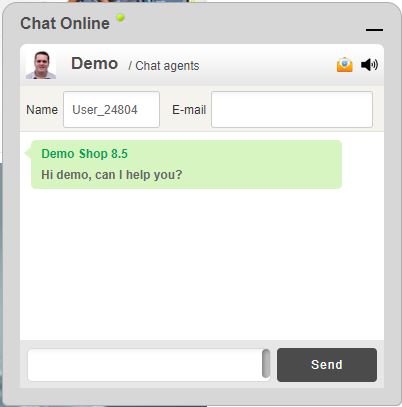
This window displays the agent’s name, his department and his photo, in case we have Show agent’s photo field enabled in Chat settings. From here, the visitor will be able to write his messages and send them, clicking on the Send button. Moreover, he will be able to give us a name and an e-mail address. He will also be able to send an e-mail with the conversation to the ecommerce administrator or mute the sound notifications clicking on the respective buttons at the top.
If the visitor has logged in in the FrontOffice, the fields of name and e-mail will be automatically filled in with his data, which will be modified by the visitor if he needs to.
In the chat main window we will visually highlight the visitor that has started a conversation or has sent a message. To access this conversation, we need to open a new window clicking on the visitor’s name.
From that window, that will have the current chat, the agent will be able to have a conversation with the visitor and answer to his questions at the moment:
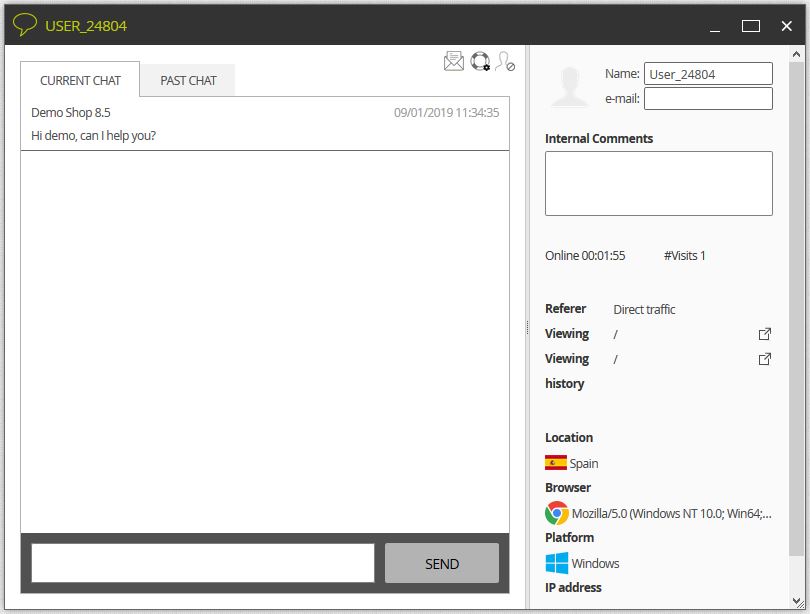
The current chat window shows different information about the visitor (right side), allows us to check older conversations (history tab) and execute actions (icons on the top) like send an e-mail to the visitor with the conversation (in case he has given his e-mail), create a ticket or ban the visitor.
Apart from written communication, the agent will also be able to recommend a product and situate the client in that particular product. To execute this action, it is only necessary that he drags a product from the explorer or the browser to the chat conversation with that client. He will automatically be redirected to the product page.