To configure the chat we need to go to:
 > SETTINGS > Chat settings
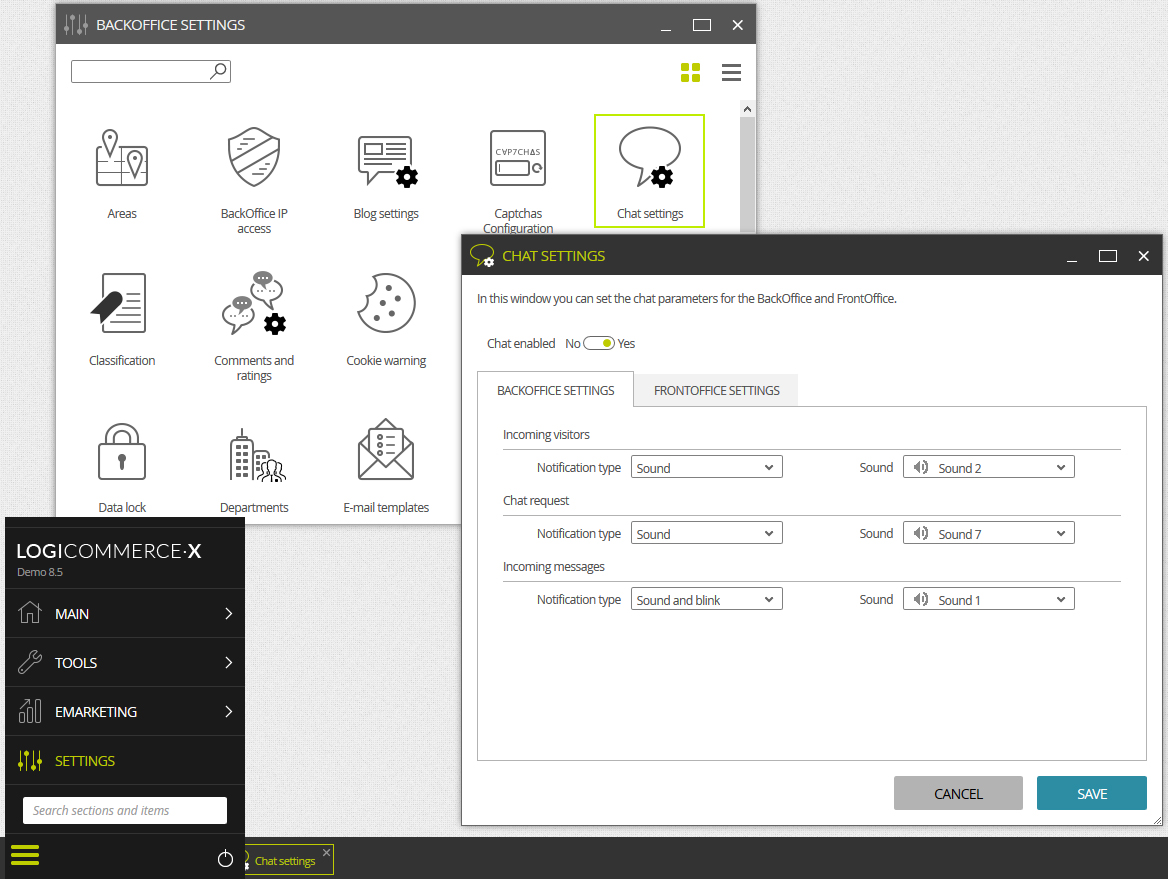
Chat settings are configured for BackOffice and FrontOffice.
BackOffice: Settings for the sounds for the different notifications that the eCommerce administrator will get, which are:
- Incoming visitors: Notification that is executed when a new user visits the FrontOffice for the first time.
- Chat request:Notification that is executed when a user writes in the chat for the first time.
- Incomming messages: Notification that is executed when a new message from an already started conversation is detected.
FrontOffice: Settings for the sounds and the location of the chat, and also for the messages that the client will get according to the chat statuses, which are:
- Online: The chat is fully operational.
- Invisible: The agent in charge of the conversation has set his status as invisible.
- Offline: The agent in charge of the conversation has set his status as offline.
- Maximum number of connections: The chat has reached the number of contracted simultaneous conversations.
- Banned: The visitor has been banned of the chat.
In plus, there is the Show agent’s photo feature, which will enable or disable the display of the photo of the agent in the FrontOffice.
 The admin users that will deal with the chat have to meet two requirements. On one hand, have the chat support enabled. This activation is established in the user card file, in the advanced settings. On the other hand, they must be assigned to a department that has the chat support enabled. In general, the assignment of a user to a department is done from BackOffice Settings > Departments, from where we can create or edit departments and enable them, as necessary here, the Chat support feature. This user or these users will get the chat agent role and only these agents will be the ones who can deal with the chat and manage it.